
# Text Extractor From PDF Online
The Complete Guide to Converting PDF to Searchable Text
Extracting text from a PDF is a challenge for many people because they often do not know that multiple options exist when it comes to PDF text extraction. If you have found yourself in a situation where you would like to extract text from a locked PDF file, a scanned PDF, or any image-based PDF, you will benefit significantly by having access to an online service which provides an immediate solution to this type of problem.
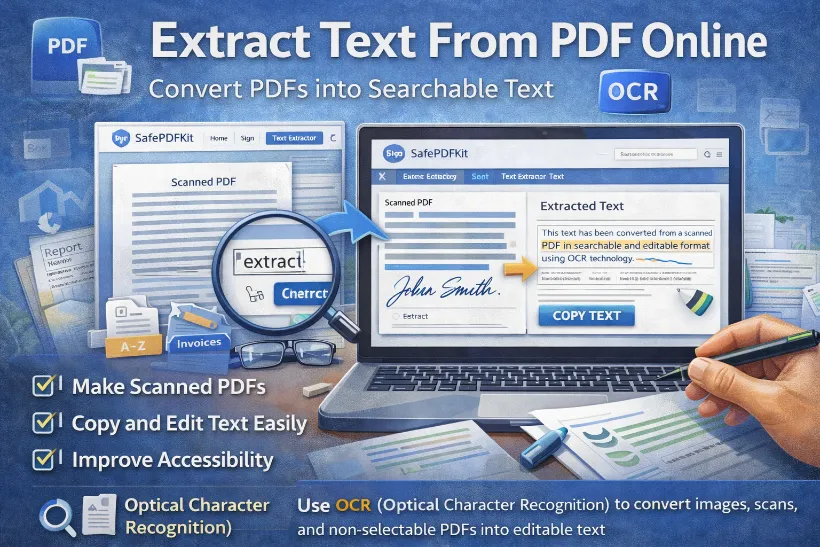
SafePDFKit provides users with a quick and easy way to extract text from PDF files without having to download anything or install anything. This guide is intended to provide users with information regarding the process of PDF text extraction, the importance of OCR technology and how you can use SafePDFKit to create fully searchable PDFs.
What Is a Text Extractor From PDF Online?
Online PDF Text Extractor works from your Internet browser to read PDF documents and convert the contents into text, which you can then read and utilize. The PDF Text Extractor uses complex intellect to analyze PDF files via sophisticated algorithms that recognize symbols, letters, and words. Copying and pasting manually will not work with scanned or picture-based PDF documents.
There are two main types of PDFs:
- Digital PDFs (Selectable Text)
These PDFs already have selectable text. Extraction is quick and accurate.
- Scanned PDFs (Images)
These PDFs are created from scanned pages or photos. The text inside is not selectable.
To extract text from these files, you need OCR technology.
What is OCR?
OCR (Optical Character Recognition) is a powerful technology that reads text inside images and converts it into editable, searchable content. It analyzes shapes, letters, and patterns to detect words accurately.
With OCR, you can:
- Make scanned PDFs searchable
- Extract text from images inside PDFs
- Convert handwriting (in many cases)
- Improve accessibility
- Copy content easily for reuse
Without OCR, scanned PDFs behave like images—you cannot highlight, search, or edit the text. OCR unlocks the content inside them.
How to make a PDF searchable
Do you want to learn how to find a word in a PDF file? Searching through numerous pages in a PDF allows for efficient studying or working, as it eliminates the need to read each individual page. However, if a PDF contains scanned images or is otherwise image-based, it will likely not be searchable.
Why Use OCR to Extract Text From PDFs?
OCR (Optical Character Recognition) is essential when your PDF contains scanned pages, photos, or text that isn’t selectable. Without OCR, these PDFs act like images—you can see the text but cannot copy, search, or edit it. Using OCR helps you unlock the content inside the PDF and convert it into fully editable, searchable text.
Here are the main reasons to use OCR for text extraction:
- Make Scanned PDFs Searchable
OCR converts scanned or image-based PDFs into searchable documents. You can quickly find names, dates, or keywords using a simple search.
- Copy and Edit Text Easily
OCR allows you to extract text from images, making it ready for editing in Word, Google Docs, or any writing tool.
- Save Hours of Manual Typing
Instead of retyping long documents, OCR automatically converts the text for you—accurately and instantly.
- Improve Accessibility
OCR helps screen readers recognize text in scanned documents, making PDFs more accessible to visually impaired users.
- Organize and Store Documents Better
Searchable PDFs are easier to index, manage, and archive for business, academic, or personal use.
- Extract Text From Photos or Screenshots
If your PDF includes images, receipts, or photos with text, OCR reads them and pulls out the words.
- Increase Productivity at Work or School
Whether you’re handling reports, assignments, forms, or research papers, OCR speeds up your workflow and helps you reuse text effortlessly.